Using Marvis Voices
WithAudio uses MarvisTTS, an open-source text-to-speech system developed by Marvis Labs (marvis-tts on GitHub). This guide will show you how to enable the two Marvis voices (Ethan and Ivy), add them to Quick Access, and play your documents using these voices.
Requirements
- WithAudio v0.1.75 or later
- macOS on Apple Silicon (ARM) — MarvisTTS is not available on Intel Macs or other platforms.
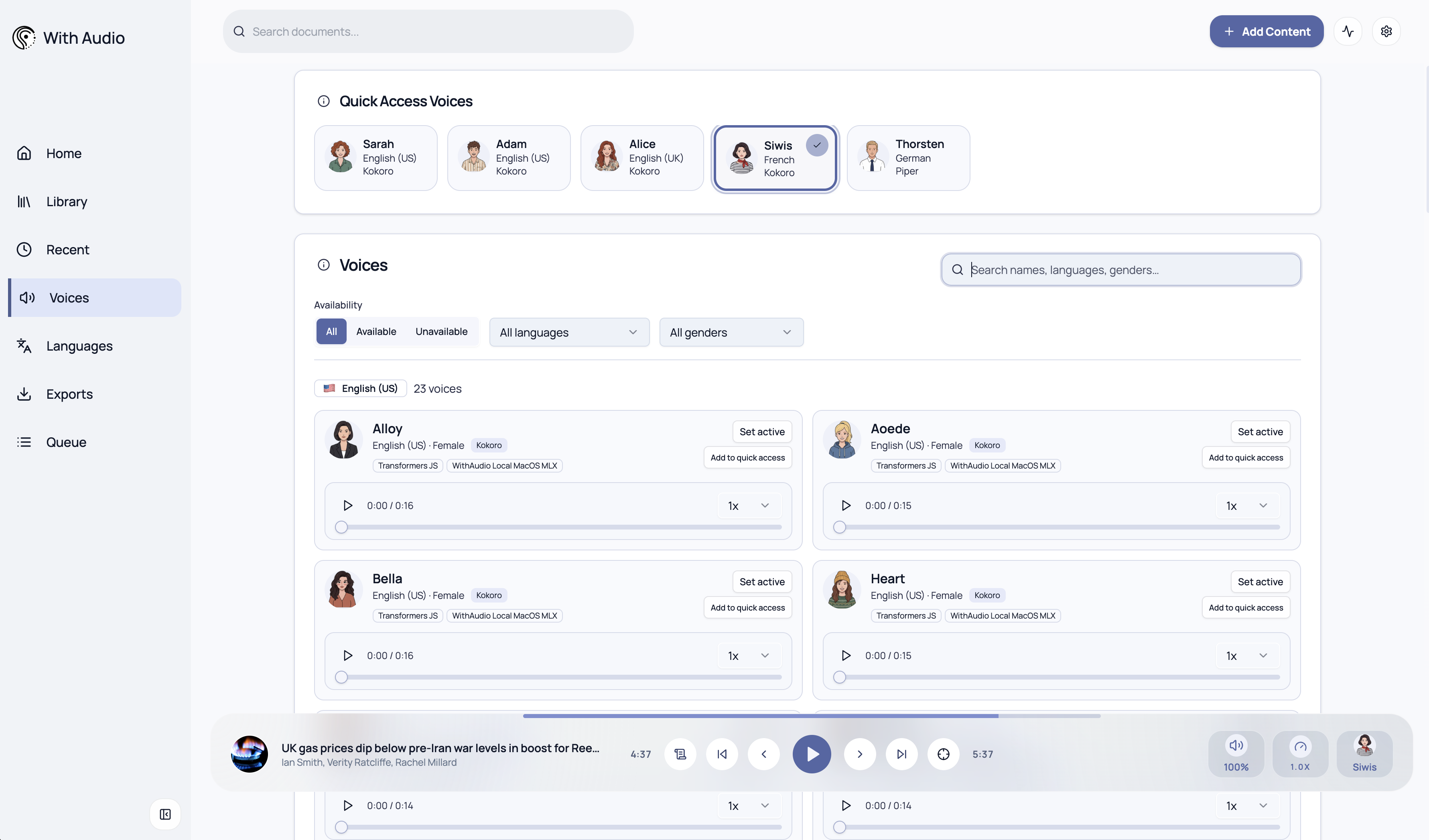
Open the Voices tab
From Home or Settings, open the Voices tab. This is where you search for voices, set up engines, and manage Quick Access.
Set up Marvis (engine download)
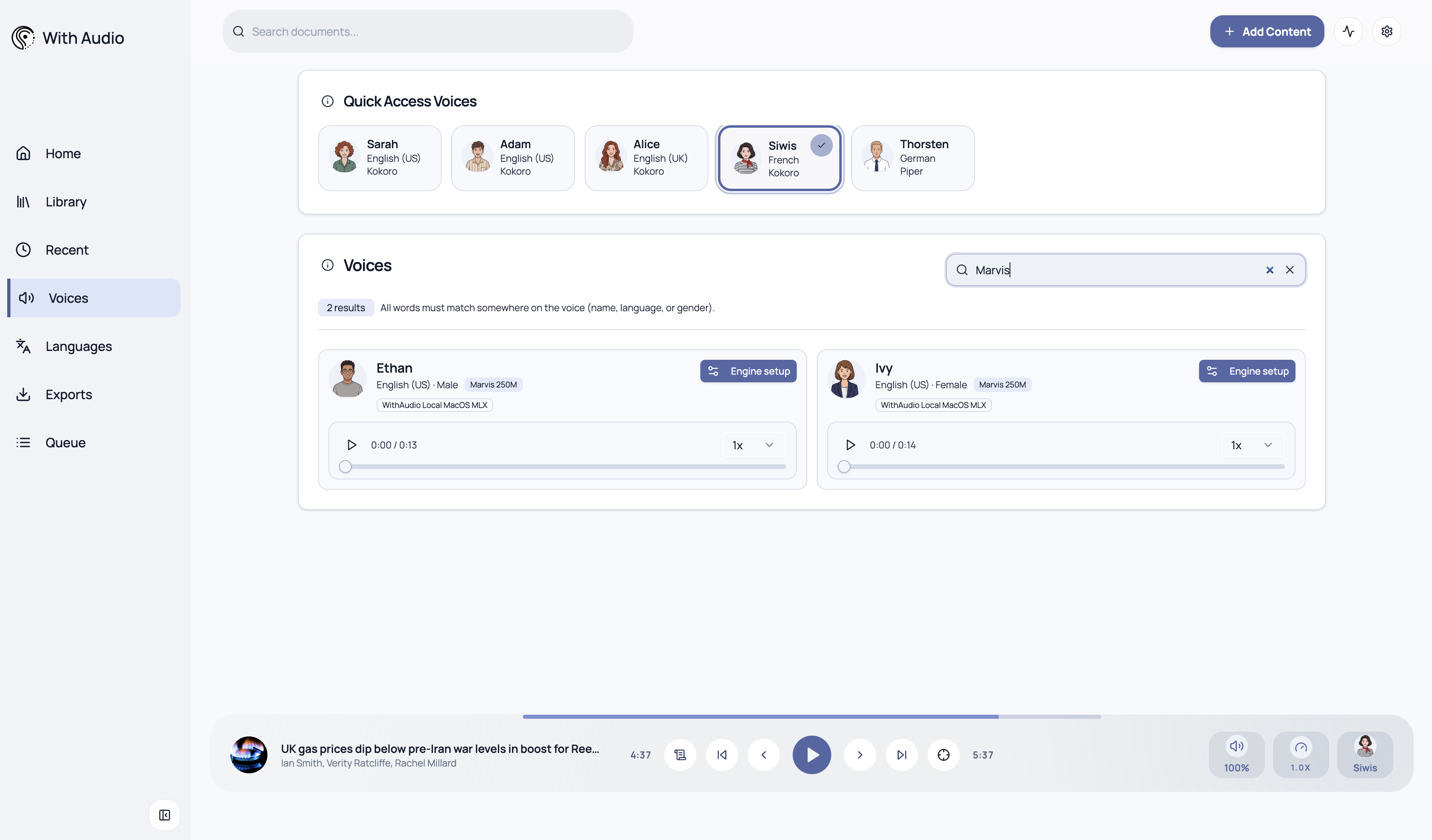
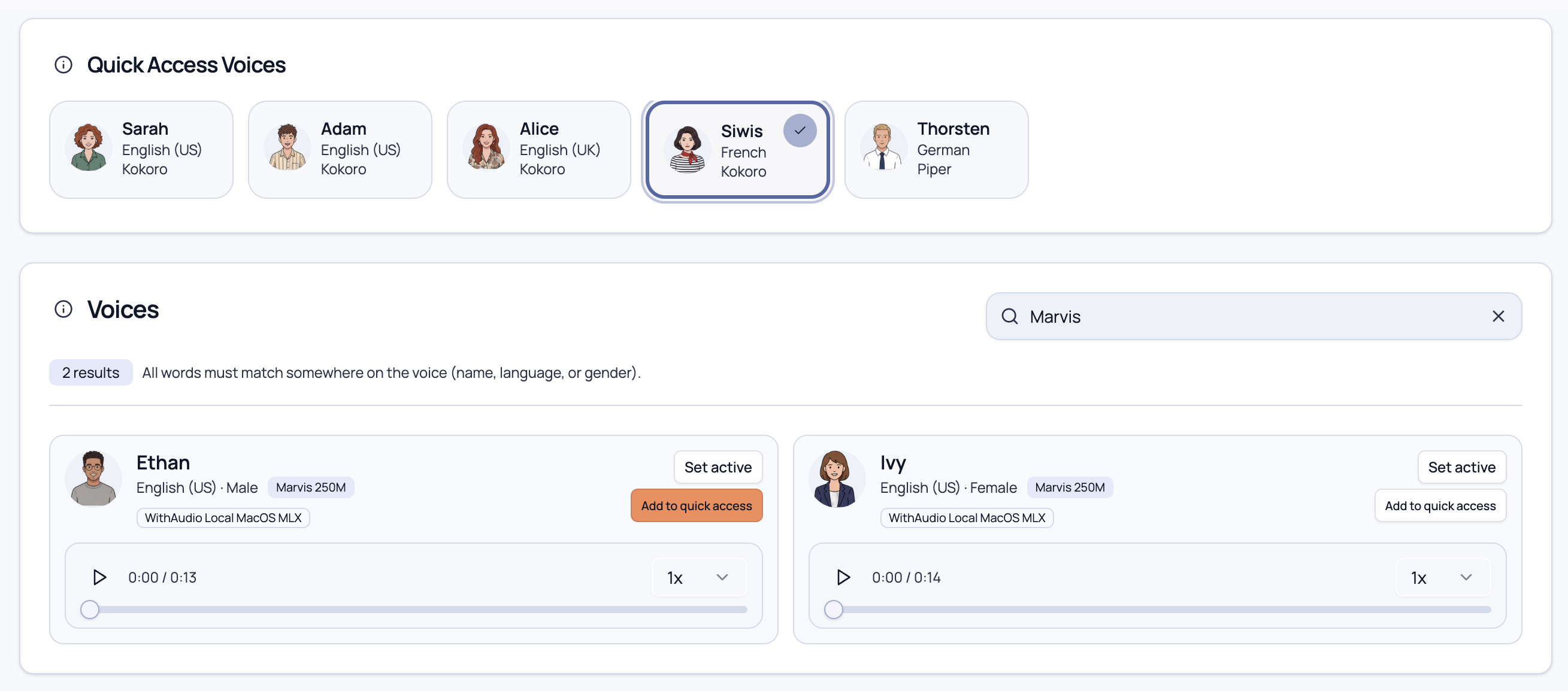
- In the search box, search for Marvis.
- Find one of the voices that have Marvis voice.
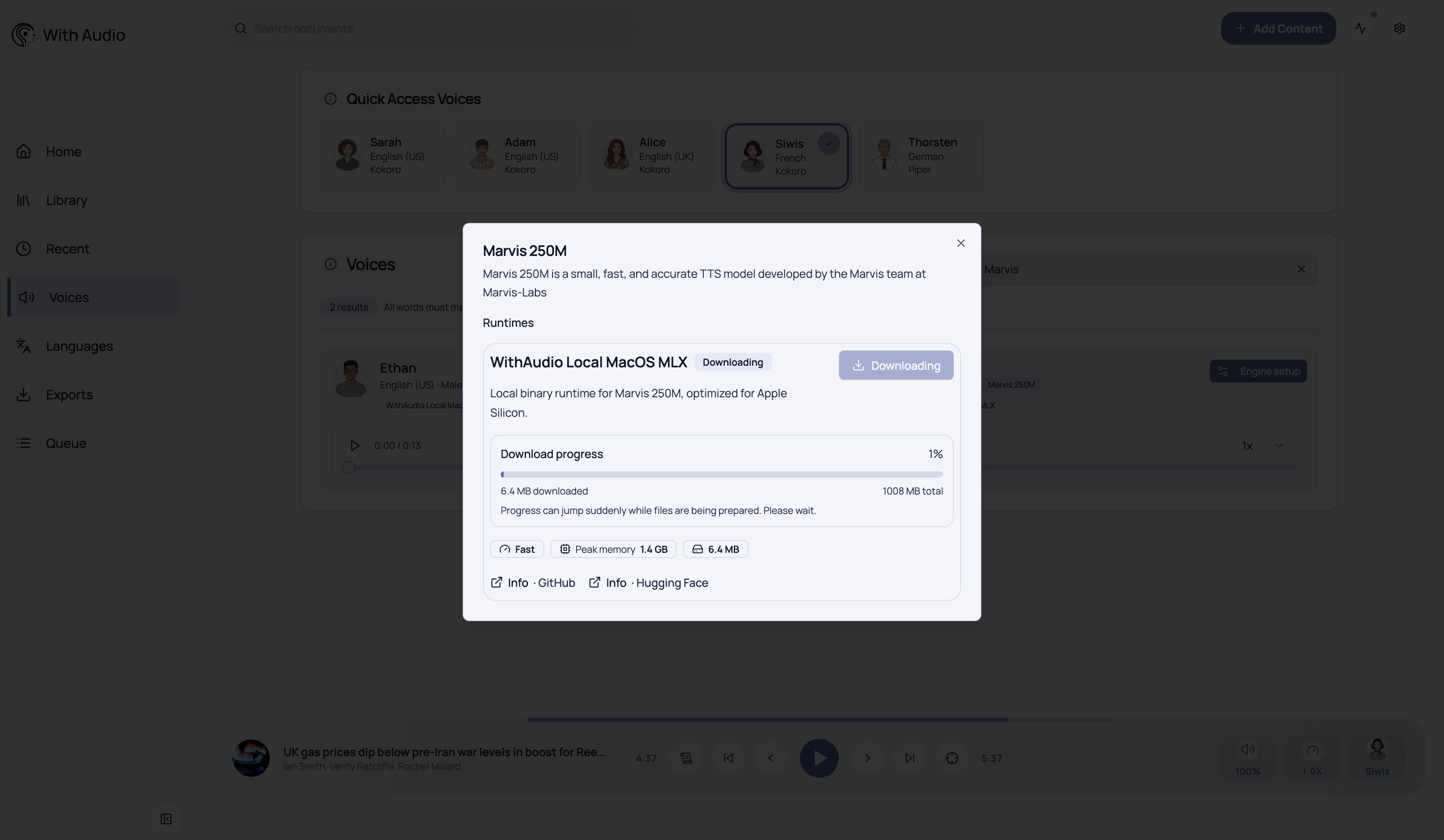
- Click Setup Engine and complete the download.
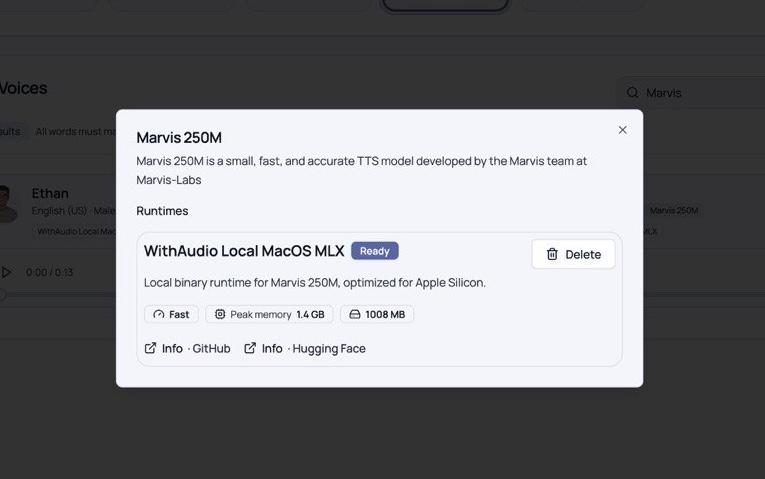
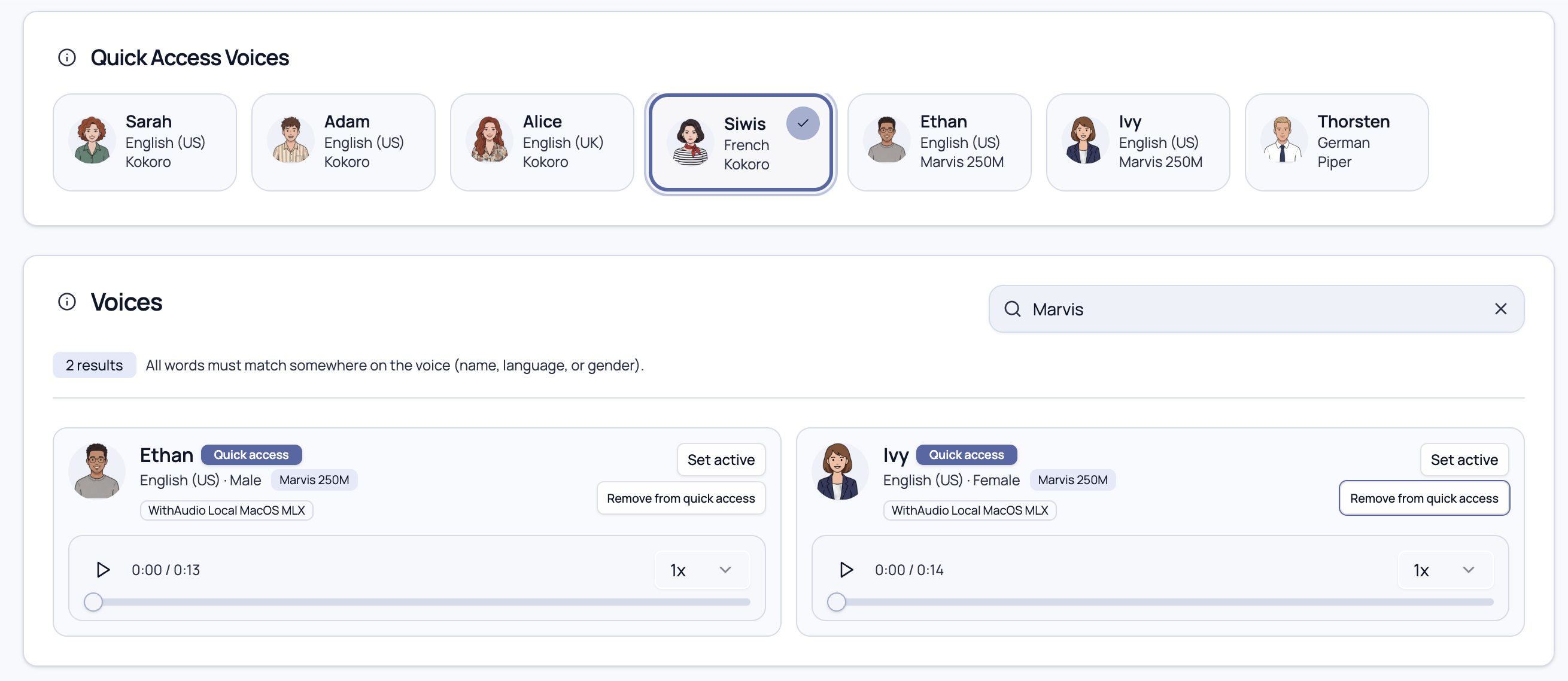
- When the download has finished, enable Add to Quick Access for Ethan and Ivy.
Choose the active voice and play
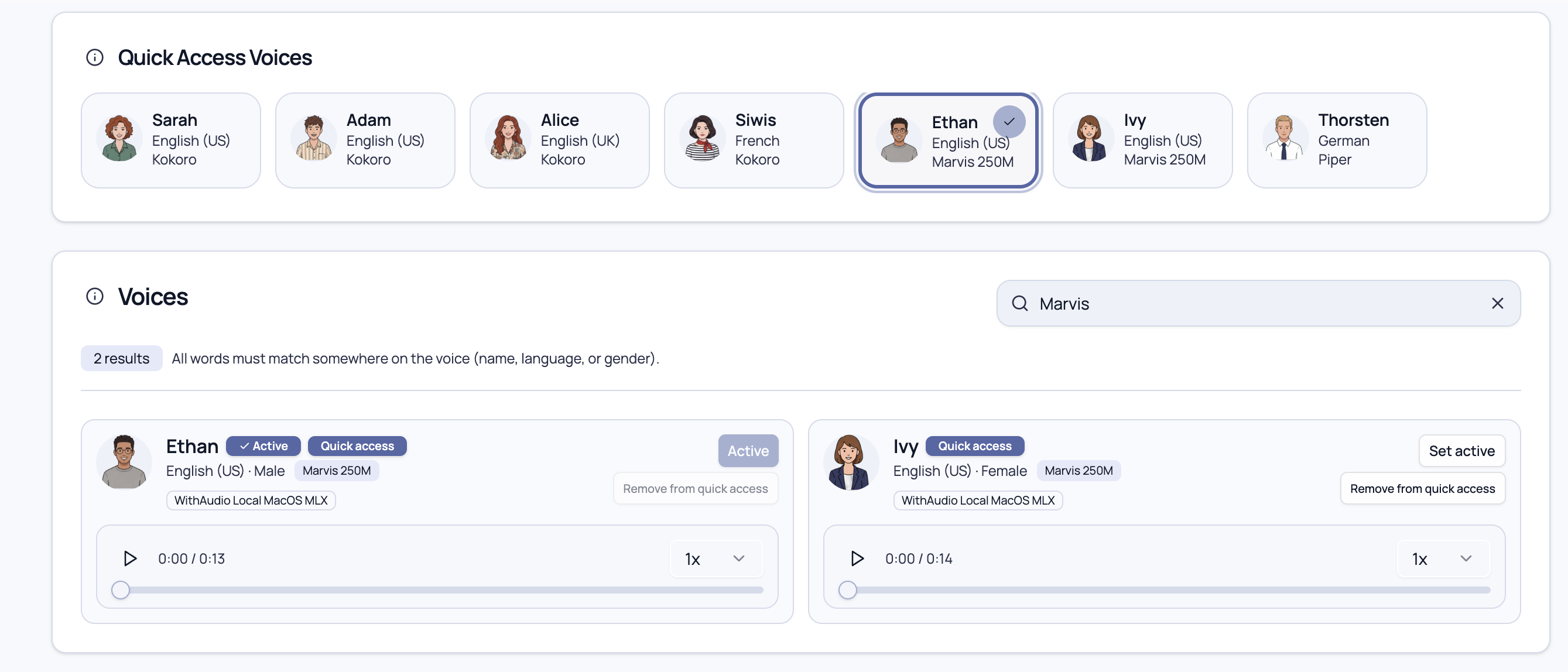
- Set Ethan or Ivy as the active voice (the one you want to read with).
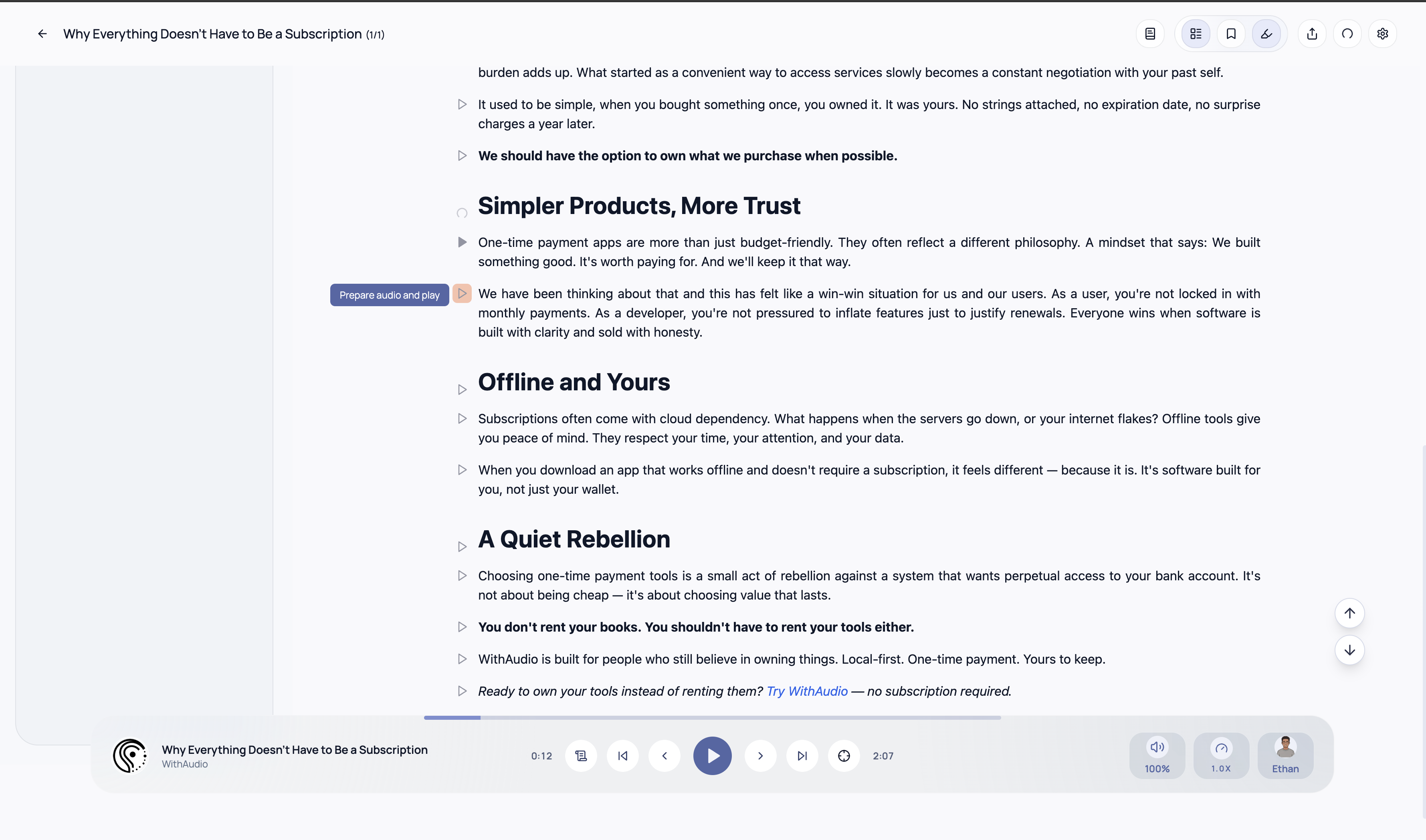
- Import a document.
- Start playback with the main Play control, or click the Play button next to the paragraph you want to start from.
Reference
Prince Canuma and Lucas Newman. Marvis-TTS: Efficient Real-time Voice Cloning with Streaming Speech Synthesis. 2025.
BibTeX:
@misc{marvis-tts-2025,
  title={Marvis-TTS: Efficient Real-time Voice Cloning with Streaming Speech Synthesis},
  author={Prince Canuma and Lucas Newman},
  year={2025}
}