Transfer License to Another Device
Learn how to deactivate WithAudio on one device and activate it on another. You can easily transfer your license between devices whenever needed.
Overview
Your WithAudio license can be active on one device at a time. Whether you’re upgrading to a new computer or want to switch between devices, the transfer process is straightforward and takes just a few minutes.
Important: Before deactivating, make sure to copy and securely store your license key. This is the same key that was emailed to you when you purchased WithAudio.
Step-by-Step Guide
Step 1: Open the WithAudio App
Launch WithAudio on the device where it’s currently activated.
Step 2: Navigate to Settings
Click on the Settings icon (gear icon) to access the application settings.
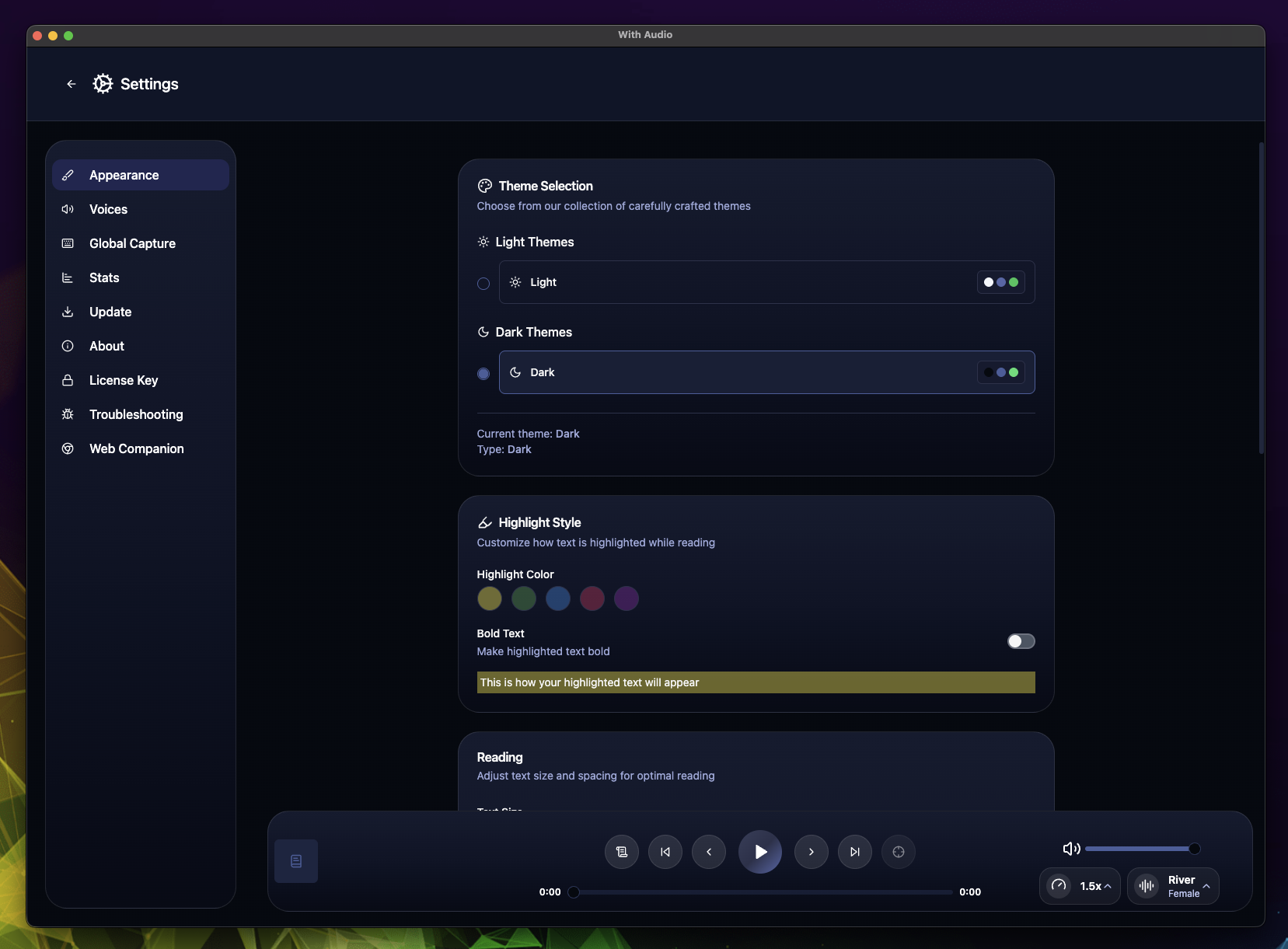 Navigate to Settings in WithAudio
Step 3: Access the License Key Tab
In the Settings sidebar, click on “License Key” to view your license management options.
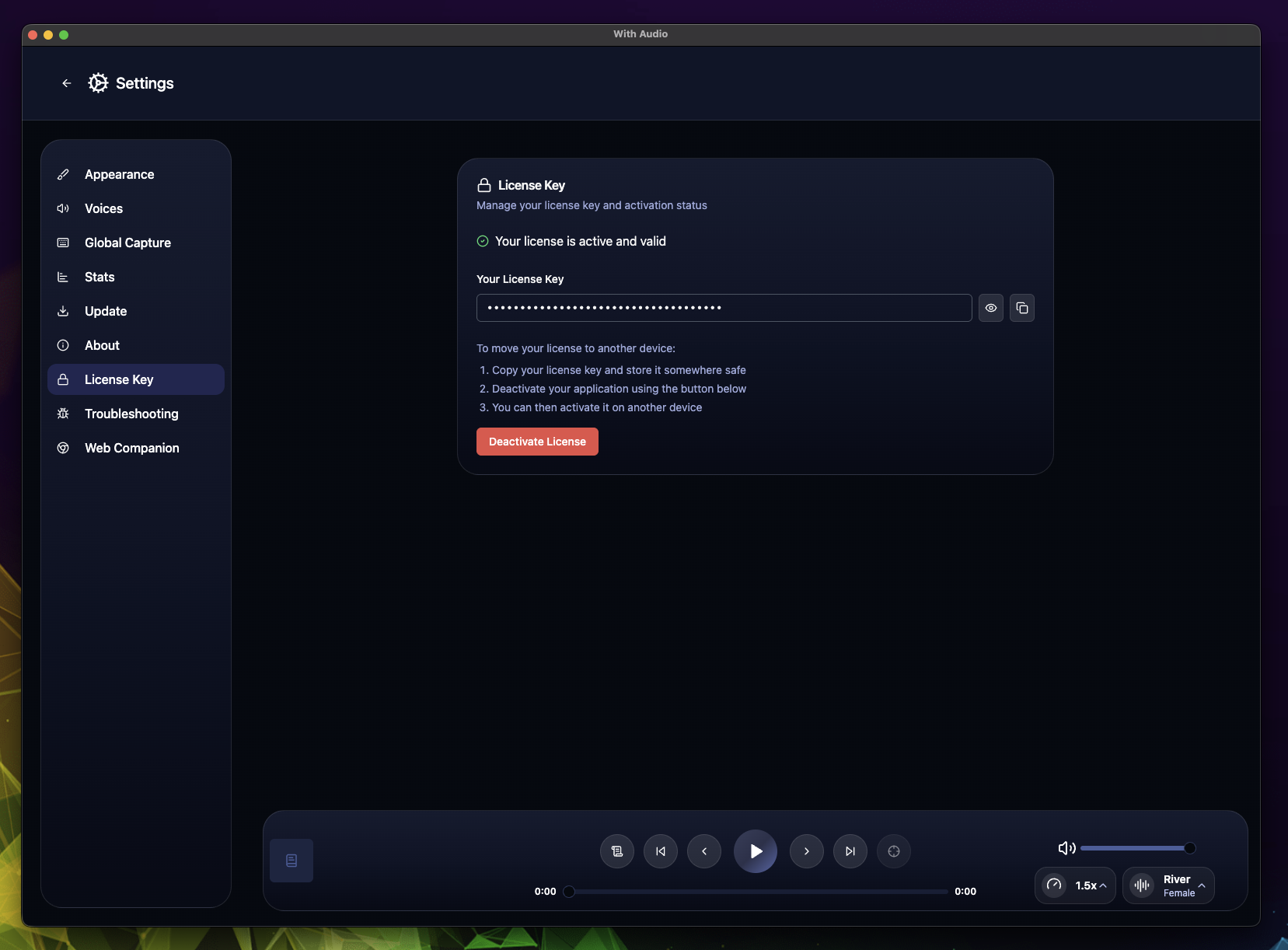 License Key management page
Step 4: Copy Your License Key
- Locate the “Your License Key” field at the top of the page
- Click the copy icon next to your license key to copy it to your clipboard
- Save this key somewhere safe - you’ll need it to activate WithAudio on your new device
Keep Your License Key Safe
Store your license key in a secure location such as:
- A password manager
- A secure notes app
- Your email (search for your original purchase confirmation)
This is the same key that was emailed to you when you purchased WithAudio.
Step 5: Deactivate the License
Click the “Deactivate License” button to deactivate WithAudio on the current device.
Once deactivated:
- WithAudio will stop working on this device
- Your license becomes available for activation on another device
- All your local data and content remain on the device
If you don’t have access to WithAudio app using your license key, reach out to us at [email protected] with the same email you purchased WithAudio and your license key.
Step 6: Activate on Another Device
Now you can activate WithAudio on your new device:
- Download WithAudio on your new device from desktop.with.audio
- Install and launch the application
- Enter your license key when prompted
- Start using WithAudio on your new device immediately
Frequently Asked Questions
How many times can I transfer my license?
You can transfer your license between devices a limited number of times. Doing this more is possible but you need to reach out to us so we increase your limit.
What happens to my content and data?
When you deactivate WithAudio:
- Your imported books, articles, and documents remain on the original device
- Audio cache and generated audio files stay on the device
- Settings and preferences are not transferred automatically
- You’ll need to re-import content on your new device
Can I use WithAudio on multiple devices simultaneously?
There are different types of licenses. The number of devices you can use WithAudio on depends on which license you have purchased. Please refer to your purchase information or receipt for details about your license type.
I lost access to my original device. What do I do?
If you can’t access the device where WithAudio is activated:
- Check your email for the original license key from your purchase.
- If you can’t find your license key, contact our support team.
- We can help you recover your license and deactivate it remotely, as long as you reach out using the same email you used to purchase WithAudio or provide your license key.
Troubleshooting
I Can’t Find My License Key
If you don’t have access to your license key:
- Check your email - Search for “WithAudio” or “license key” in your inbox
- Look for the purchase confirmation - The license key was included in your original purchase email
- Contact support - If you still can’t find it, we can help you retrieve it
License Key Not Working on New Device
If your license key isn’t accepted on the new device:
- Double-check the key - Ensure you copied the entire key without extra spaces
- Verify deactivation - Make sure you successfully deactivated on the original device
- Check your internet connection - Activation requires an active connection
- Try copying again - Use the copy button instead of manual selection
- Reach out to support
Need Help?
If you encounter any issues during the deactivation and activation process, or if you don’t have access to your license key, we’re here to help!
Contact Support:
- Email: [email protected]
- We typically respond within 24 hours
Our support team can assist with:
- License key recovery
- Activation issues
- Remote deactivation if you don’t have access to your original device
- Any other licensing questions or concerns
Related Documentation
- Getting Started - New to WithAudio? Start here
- Export Audio - Create portable audiobooks
- Using Different Voices - Customize your audio experience