Controllable Pause Between Sentences
Starting version 1.1.0 WithAudio Desktop lets you adjust how long the silence lasts between sentences. Some voices feel too rushed; others leave more quiet than you want. This setting is there so you can nudge that gap without changing the voice itself.
TL;DR
In our experience for most of our users the default behavior is well suited. But different documents come with different needs.
You can set the pause in two places:
Global default — Settings → Documents → Pause between sentences
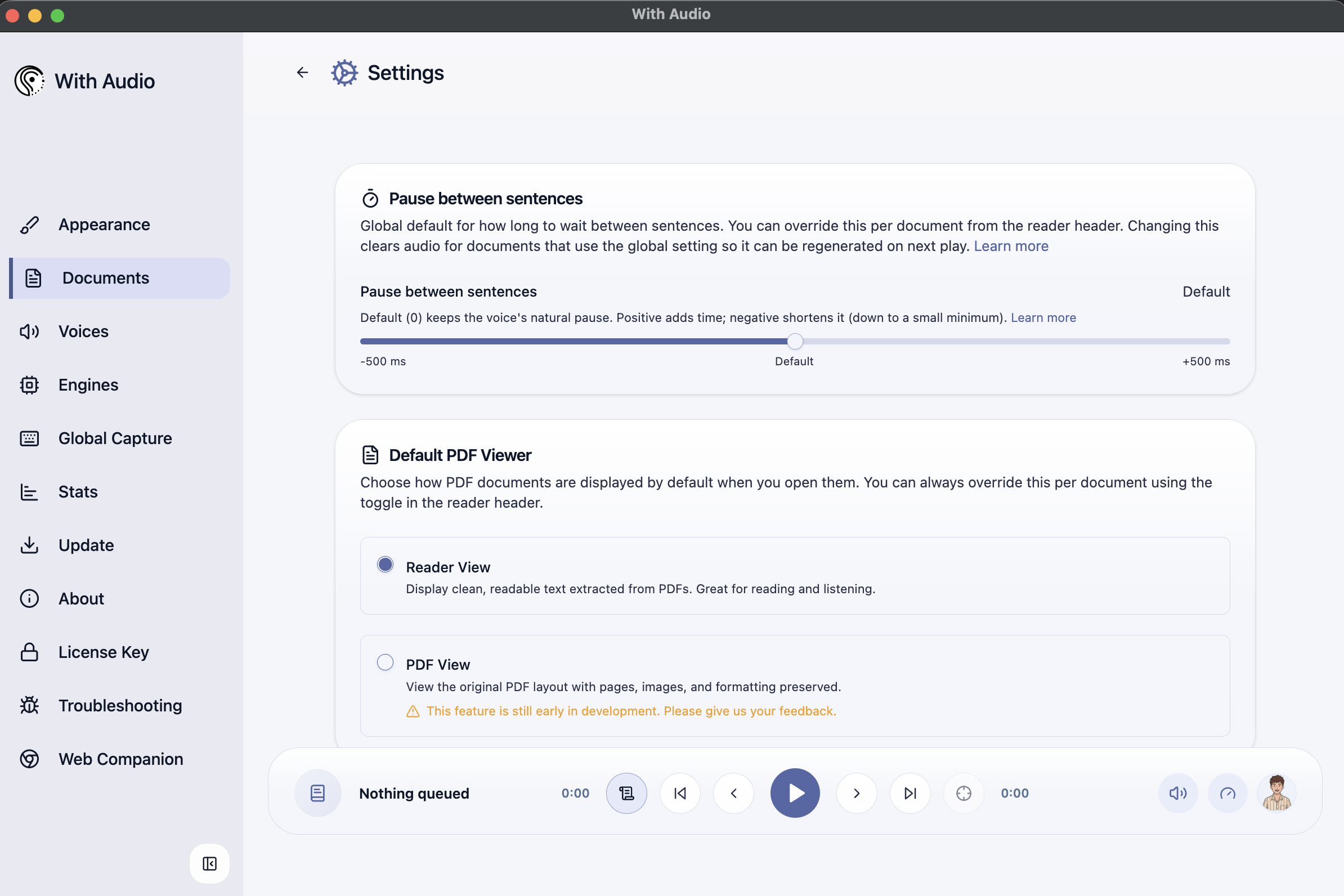 Settings → Documents — applies to every document without its own override
Per document — open Document settings in the reader (sliders icon in the header)
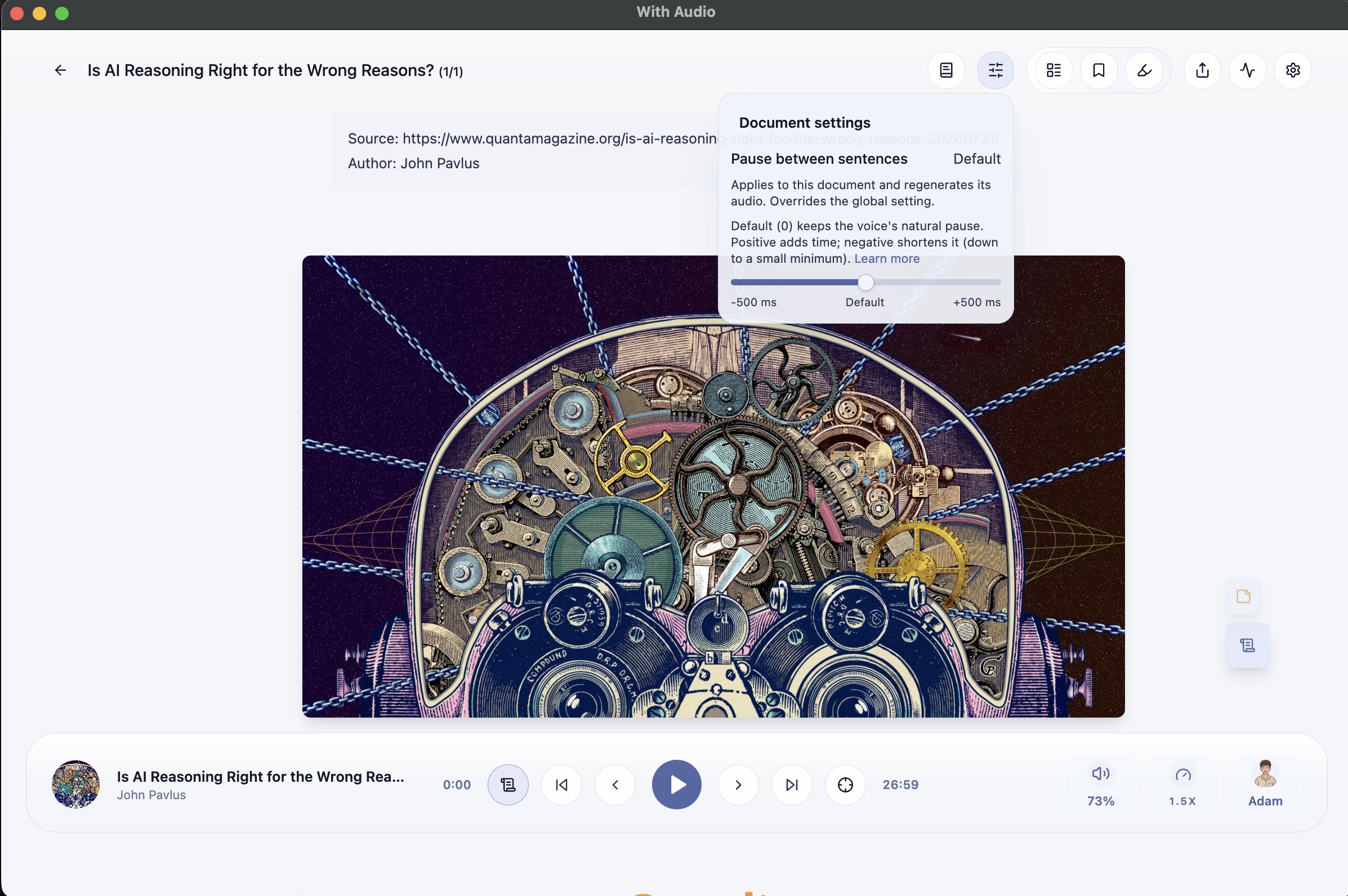 Document settings — overrides the global default for that document only
Range: -500 ms to +500 ms, in 50 ms steps. 0 means leave the voice’s natural pause unchanged.
Goal
Give you simple control over the pause between sentences:
- Keep the voice’s natural timing when you want the default experience
- Add a little more breathing room when speech feels too tight
- Shorten long gaps when speech feels too slow
The pause is baked into the generated audio, so listening in the app and exporting to a file stay consistent.
How it works
Every voice leaves some quiet at the end of a sentence. That amount is decided by the TTS engine and voice. WithAudio does not invent a fixed “default pause length.” We call that the natural pause.
Your setting is an offset from that natural pause:
| Setting | Meaning |
|---|---|
| Default (0) | Leave the voice’s natural pause unchanged |
Positive (e.g. +200 ms) | Add that much silence on top of the natural pause |
Negative (e.g. -100 ms) | Shorten the natural pause by up to that amount |
Negative values only remove quiet at the end of a sentence. They will not cut into spoken words. If there is not enough trailing silence to remove, WithAudio keeps a very small minimum gap.
Range: -500 ms to +500 ms, in 50 ms steps.
Where to change it
Global default
Settings → Documents → Pause between sentences
This applies to every document that does not have its own override.
Per document
In the reader, open Document settings (sliders icon in the header, or under the overflow menu on smaller layouts).
A document setting overrides the global default for that document only. You can clear it with Use global to go back to the global value.
What happens when you change it
Changing the pause clears that document’s generated audio (or, for a global change, audio for documents that use the global setting). Audio is regenerated as you play again — it is not all rebuilt immediately.
Exports use the same pause setting as listening. If you export after changing the pause, wait for the new audio to generate (or export after listening through the parts you care about) so the file matches what you hear.
Limitations
- Natural pause varies by voice. Default (0) is not a fixed number of milliseconds. Two voices can sound different at the same setting because each leaves a different amount of quiet.
- Negative has a floor. You can ask for a large reduction, but WithAudio will not remove speech — only silence — and always keeps a tiny gap.
- Sentence boundaries only. The adjustment applies between real sentences (and similar boundaries), not in the middle of a long sentence that was split for generation.
- Cannot change during export. If a document is exporting, pause controls are disabled for that document. Global pause is also blocked when any document that inherits the global setting is exporting. Finish or cancel the export first.
- Regeneration cost. After a change, previously generated audio for affected documents is cleared and must be regenerated on next play. Large documents may take a while to feel “caught up” again.
- Already-finished exports are unchanged. Changing pause does not rewrite files you already exported. Start a new export if you want the new pause in the file.
Tips
- Start at Default, then move in small steps (±50 or ±100 ms) and listen to a few sentences before deciding.
- Prefer a document override when only one book needs a different pacing, so the rest of your library keeps the global default.
- If a voice already feels spacious, try a small negative value before switching voices.
- If speech feels clipped or rushed, try a modest positive value first — large jumps are rarely needed.
Summary
Controllable pause is an offset from whatever quiet the voice already produces. 0 means “don’t change it,” positive adds time, and negative shortens the gap safely. Use it to make listening more comfortable — not as a guarantee of the same absolute pause length across every voice.