Manually Placing Dependencies
After you download the installer from https://desktop.with.audio/download and install it, WithAudio may need to download additional dependencies (resources).
If you’re having trouble downloading dependencies on a target device, you can follow this guide to download them manually and place them in the correct location.
Please note: this only works on systems that still allow some internet access. Activating a free trial or a purchased license requires a working internet connection.
Start by installing and running WithAudio once. This sets up the required folders. If you see an error about downloading resources, fully quit WithAudio (on macOS: Quit the app; don’t just close the window), then follow the steps below.
Text To Speech Model (TTS Model)
Download tts-models-20260302T07.zip file from one of these links (they are the same):
- https://d3onlmg0ftup07.cloudfront.net/manual/tts-models-20260302T07.zip
- https://desktopwithaudio.s3.us-east-1.amazonaws.com/manual/tts-models-20260302T07.zip
and unzip the file. You see one directory called models. The directory looks empty but contains hidden files. These are a subset of files found at https://huggingface.co/onnx-community/Kokoro-82M-ONNX.
On macOS, open Finder and go to Library.
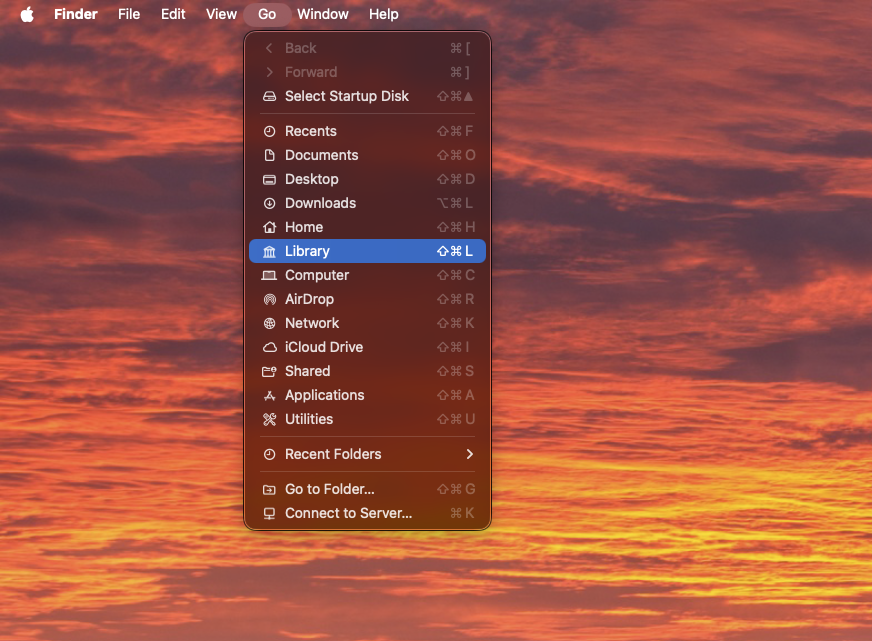 In Finder, open the Go menu and select Library
Then go to “Application Support”
 Navigate to Application Support
Then go to “With Audio”
 Open the With Audio folder
If there is already a directory called models, remove it first. Make sure WithAudio is not running while you do this.
Move the models directory (from the unzipped download) into the With Audio folder. Don’t put the zip file there—put the unzipped models folder there.
The models directory in the With Audio directory should look like this (don’t worry if not all other folders and files are not there):
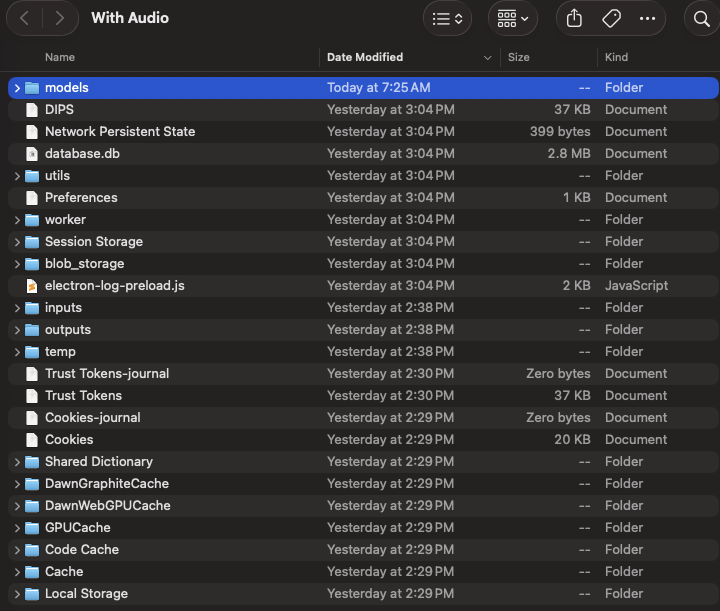 Example directory layout after placing
 models
Other resources and platforms
Please reach out to [email protected].